
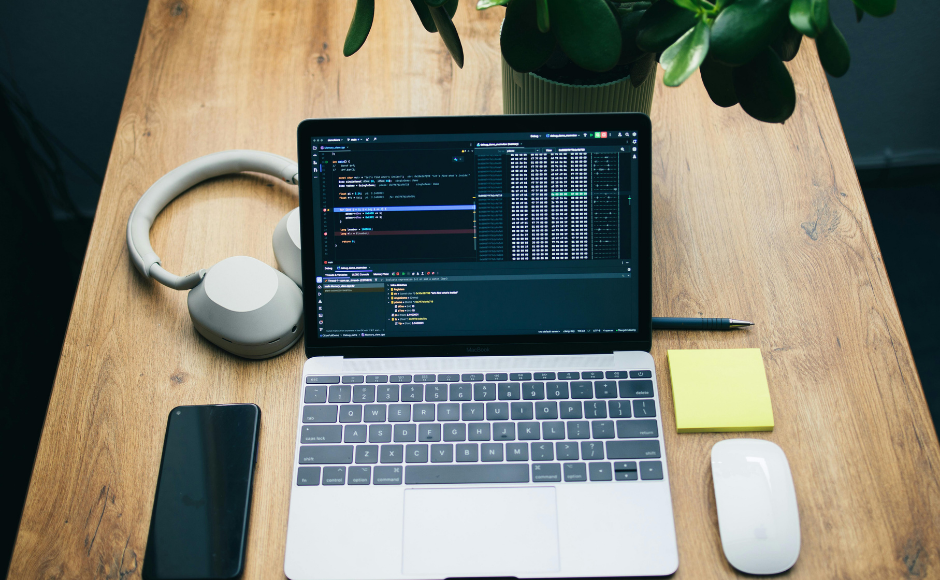
Open your computer right now and take an honest look. How many icons are on your desktop? How many browser tabs are open? How many notification badges are staring back at you, each one a small demand on your attention? If the answer to any of these is “more than I’d like to admit,” you are in good company. Most professionals inherit their digital workspace by accident rather than designing it on purpose.
Your physical office gets attention. You choose a desk, a chair, lighting. But the environment where you actually do most of your work, the screen in front of you, is usually a default mess of accumulated files, unclosed tabs, and unchecked notification settings. This matters because your digital environment directly shapes your cognitive performance. A cluttered, reactive digital workspace drains attention in exactly the same way a cluttered physical desk does, except you spend far more hours immersed in the digital one.
This guide walks through a complete approach to digital workspace design, covering everything from screen architecture and notification management to audio environment and daily focus rituals. The goal is not a perfect aesthetic. It is a working environment that supports your best thinking.
1. Why Your Digital Environment Shapes Your Focus
The connection between environment and cognition is well established in physical spaces. Open-plan offices increase distraction. Quiet rooms support concentration. The same principles apply to your screen, but most people never think to apply them there.
Visual Clutter Is Cognitive Clutter
A desktop covered in files and shortcuts creates a constant low-level pull on your attention. You may not consciously read each icon, but your brain registers the visual noise and processes it as unresolved information. The same applies to a browser with 30 open tabs, a taskbar full of notification badges, and an inbox count visible at all times. Each of these is a micro-demand that fragments your focus before you even begin working.
Research on attention and environment consistently shows that visual simplification reduces cognitive load and improves task performance. A clean digital environment does not make you smarter, but it removes obstacles that make you slower. Productivity workspace optimization at the screen level addresses the environment you inhabit for the majority of your working day.
Default vs. Intentional Environments
Most digital workspaces are not designed. They happen. You install applications as you need them. Files land on the desktop because it is convenient. Notifications stay enabled because you never turned them off. Over months and years, these defaults accumulate into a reactive environment that serves every possible interruption equally and your focused work not at all.
A distraction-free digital setup is the result of deliberate choices about what you see, what can interrupt you, and how your tools are arranged. The difference between default and intentional environments is the difference between a workspace that works for you and one that works against you.
2. Auditing Your Current Digital Environment
Before making changes, assess what you are working with. A quick audit reveals the specific friction points that deserve attention rather than guessing at generic improvements.
The Digital Workspace Audit
Spend 15 minutes examining your current setup. Count desktop icons. Note open browser tabs. Check background applications (Task Manager on Windows, Activity Monitor on Mac). Review notification settings and count how many apps send alerts. Check your startup programs list.
This audit usually surprises people. Many discover background processes they forgot about, notification permissions they never granted, and startup programs that slow their machine from the first moment of the workday.
Identifying Your Biggest Focus Drains
Map your distraction triggers. Which applications pull you away from focused work most often? Is it email notifications, messaging pings, news sites, or social media? Track these for a single day by noting each interruption and its source. The pattern that emerges will be specific to you, and the improvements you make should target that pattern directly.
Assess your work style as well. How much of your day requires deep, uninterrupted concentration versus collaborative communication? What types of tasks do you perform most often? Your ideal focused work environment will differ significantly depending on whether you spend most of your day writing, coding, analyzing data, or managing projects. Understanding your own work profile prevents you from adopting someone else’s ideal setup that does not match your actual needs.
Setting Design Goals
Based on your audit, identify two or three specific changes that would make the biggest difference. Maybe it is clearing your desktop and establishing a file system. Maybe it is configuring notifications so only truly urgent messages break through. Maybe it is setting up virtual desktops to separate work contexts. Prioritize by impact and start there.
3. Desktop and Screen Architecture
Your desktop and monitor configuration form the visual foundation of every work session. Getting this layer right creates calm and clarity that compounds throughout the day.
Desktop Organization
Treat your desktop as a launch pad, not a storage facility. Every file sitting on your desktop is a visual reminder of something unfinished or unfiled. Move working files into project folders. Move reference files into an archive. Aim for fewer than five icons on your desktop; some professionals prefer zero. A clean desktop with a calm wallpaper becomes a visual cue that signals “focus” every time you see it.
Choose your wallpaper intentionally. A dark, simple image or a nature scene with muted tones creates less visual competition for your attention than a bright, busy photograph. This is a small detail, but small details compound across eight hours of daily exposure. Thoughtful digital workspace design starts at this foundational visual layer.
File Organization for Clarity
A simple, consistent folder structure reduces the cognitive cost of finding and filing documents. Three to five top-level folders organized by major work area or life domain (such as Work, Personal, Active Projects, Archive, and Resources) cover most needs. Within each, use descriptive folder names and a consistent naming convention for files. Date-based prefixes (2026-02-11 Report Draft) make chronological sorting automatic.
Separate active files from archived ones. A folder for current projects with a parallel archive folder keeps your working directory clean and relevant. Schedule a 10-minute desktop and downloads folder cleanup every Friday to prevent accumulation.
Monitor Setup and Virtual Desktops
If you use a single monitor, full-screen mode during deep work sessions eliminates peripheral visual distractions entirely. If you use dual monitors, assign each a clear purpose: primary monitor for your active task, secondary for reference material or communication tools. Avoid placing messaging applications or email on your primary monitor where they compete for attention with your main work.
Virtual desktops are one of the most powerful and underused features on both Windows and Mac. Create separate desktops for different work contexts: one for deep work (text editor or primary application only), one for communication (email, messaging, calendar), and one for research (browser with reference tabs). Switching between virtual desktops preserves the context of each workspace without the visual clutter of having everything open on a single screen.
This approach to productivity workspace optimization through screen architecture gives you the equivalent of multiple physical desks, each set up for a different type of work, accessible with a single keyboard shortcut.
4. Notification Architecture and Interruption Management
Notifications are the single greatest threat to sustained concentration in any digital environment. A well-designed notification system distinguishes between what genuinely needs your immediate attention and what can wait.
The True Cost of Interruptions
Each notification that breaks your focus costs far more than the few seconds it takes to read. Research on attention recovery suggests that returning to full concentration on a complex task takes 15 to 25 minutes after an interruption. If you receive just four unnecessary notifications per hour during a deep work session, you may never fully recover your focus within that session at all.
Most professionals receive dozens of notifications per hour across their devices. The vast majority of these are not urgent. They are informational, social, or promotional alerts that create a constant pull of anticipation and checking behavior. Building a deep work environment design that protects concentration requires treating notification management as serious infrastructure, not a minor preference setting.
Building a Notification Hierarchy
Sort every application on your devices into four tiers. Tier one: genuinely urgent sources that may interrupt at any time (critical contacts, security alerts). Tier two: important but non-urgent, delivered in batches (email, project updates). Tier three: manual check only (news, social media). Tier four: disable entirely (promotional, app marketing).
Apply this hierarchy ruthlessly across your computer and phone. Most people discover that 80 percent of their notifications belong in tier three or four. This tiered approach is the structural backbone of any serious deep work environment design.
Focus Mode Configuration
Both Windows and Mac offer built-in focus modes that suppress notifications during scheduled periods. Configure these to activate automatically during your peak deep work hours. Create a short exception list for critical contacts.
Communicate your focus periods to your team. A calendar block labeled “Focus Time” or a status message sets expectations. A distraction-free digital setup is as much about communication norms as software settings.
5. Browser and Internet Environment Design
For most knowledge workers, the browser is where the majority of distractions originate and where the majority of productive work also happens. This tension makes intentional browser setup especially important.
The Browser as a Focus Tool
Your browser does not have to be a distraction engine. Start by configuring your new tab page. Instead of a feed of trending articles or a search page with news headlines, set it to a blank page, a simple to-do list, or a focus-oriented start page. This one change eliminates a distraction trigger that activates every time you open a new tab.
Create separate browser profiles for work and personal use. Most modern browsers support multiple profiles, each with its own bookmarks, extensions, history, and saved logins. Using your work profile during focused hours and your personal profile during breaks creates a clear boundary that reduces habitual drifting into personal browsing during work time. This is one of the most effective digital workspace design strategies within the browser.
Tab Management
Set a personal maximum for open tabs. Seven is a good target for focused work. When you approach the limit, decide about each tab: bookmark it, add it to a reading list, or close it. Tab group features let you organize tabs by project and collapse groups you are not actively using.
Pinned tabs for essential tools (project management, calendar) keep them accessible without cluttering your tab bar. Session-saving extensions let you save a set of tabs as a named group, close them all, and restore them later. This level of productivity workspace optimization within the browser prevents the gradual tab accumulation that fragments attention.
Website Blocking
Identify the three to five websites that consume the most unplanned time during your workday. Use a browser extension or system-level tool to block access to these sites during your deep work hours. Scheduled blocking is more sustainable than permanent blocking because it allows guilt-free access during breaks while protecting your focused work environment from habitual browsing.
6. Application Organization and Workflow Design
Every application on your computer is either supporting your current task, sitting idle, or actively competing for your attention. Organizing your applications by purpose reduces the cognitive cost of navigating between tools.
Application Audit
List every application installed on your computer. Categorize each as daily, weekly, or rarely used. Remove applications you have not opened in over a month. Every unused application contributes to visual clutter, consumes resources, and may generate background notifications. Simplifying your application footprint is a straightforward focused work environment improvement.
Dock and Taskbar Organization
Limit your dock or taskbar to applications you use daily. Arrange them in workflow order: if your morning routine begins with email, then your calendar, then your primary work application, place them in that sequence. Separate work applications from personal ones visually, using folders or spacers where your operating system supports it.
Keyboard launchers (Spotlight on Mac, Windows search, or third-party launchers) let you open any application by typing a few characters. Once you develop this habit, you can reduce your dock to its absolute minimum because you no longer need visual reminders of what is installed.
Workflow-Specific Layouts
For tasks you perform regularly, create consistent application layouts. If your writing workflow involves a text editor on the left and a reference browser on the right, arrange them that way every time you write. If your data analysis workflow uses a spreadsheet, a visualization tool, and a notes application, set up a virtual desktop with all three positioned consistently.
This consistency reduces startup friction. When your environment looks the same every time you begin a specific type of work, your brain associates that visual arrangement with that task, creating a focus cue that helps you enter productive concentration faster. This is deep work environment design at the behavioral level, where visual triggers replace willpower as the mechanism for initiating focus.
Focus Features Within Applications
Most professional tools offer distraction-reducing features that go unused. Word processors have focus or zen modes that hide menus and toolbars. Browsers have reader modes that strip ads. Code editors have minimal UI themes. Enabling these features during deep work sessions is part of maintaining a distraction-free digital setup at the application level.
7. Audio Environment and Sensory Design
What you hear while you work affects your concentration as significantly as what you see. The audio dimension of productivity workspace optimization deserves intentional design.
Sound as a Focus Tool
Research on audio and concentration reveals a nuanced picture. Complete silence works best for complex analytical tasks for most people. Moderate ambient noise (the level of a quiet coffee shop) can enhance creative thinking. Music with lyrics generally impairs reading and writing tasks, while instrumental music or ambient soundscapes can support flow during routine or moderately complex work.
Assess your own response to different sound environments. The goal is not to follow a prescription but to identify what genuinely supports your concentration and build that into your deep work environment design intentionally.
Noise Management
If your environment is noisy, noise-cancelling headphones are one of the highest-return investments for a focused work environment. Active noise cancellation reduces ambient sound to a level that allows sustained concentration even in shared spaces, open offices, or homes with unpredictable noise sources.
Configure your notification sounds as carefully as your visual notifications. Mute all non-critical alert sounds during focus sessions. Consider using a distinct, pleasant tone for the one or two alert categories that genuinely need to interrupt you so that silence means safety and sound means importance.
Audio Cues for Transitions
Use consistent audio cues to signal the start and end of focus sessions. A specific playlist, a particular ambient soundscape, or even a simple timer chime can become a Pavlovian trigger that helps your brain shift into concentrated work mode more quickly. Over time, pressing play on your focus playlist activates concentration almost automatically.
8. Lighting, Display, and Visual Comfort
Physical comfort at your screen directly affects how long you can maintain concentration before fatigue forces a break. Optimizing your display settings and lighting extends your effective deep work sessions.
Screen Display Settings
Adjust your monitor brightness to match the ambient light in your room. A screen that is significantly brighter than its surroundings causes eye strain; one that is too dim forces you to squint. Most operating systems offer automatic brightness adjustment, but manual calibration based on your specific lighting conditions usually produces better results.
Enable night mode or warm display settings during evening work sessions. Blue light suppression in the hours before sleep reduces the circadian disruption that screen exposure can cause. Many professionals schedule this shift to begin automatically at sunset. Deep work environment design extends to these physical comfort details because they determine how long you can sustain high-quality concentration before your body demands a break.
Ambient Lighting
Position your primary light source so it illuminates your workspace without creating glare on your screen. A bias light behind your monitor (an LED strip attached to the back) reduces the contrast between your bright screen and the darker wall behind it, which measurably reduces eye fatigue during extended sessions.
Match your ambient lighting color temperature to your screen settings. Cool, bright light (4000-5000K) supports alertness during daytime work. Warm light (2700-3000K) is better for evening sessions when you want to maintain focus without overstimulating your visual system.
Eye Strain Prevention
The 20-20-20 rule remains effective for sustained screen work: every 20 minutes, look at something 20 feet away for 20 seconds. Proper monitor distance (arm’s length) and positioning (top of screen at or slightly below eye level) reduce neck strain that compounds into headaches and concentration loss.
9. Building Focus Rituals Around Your Digital Space
The best-designed workspace in the world will not maintain itself. Daily and weekly rituals keep your environment clean, your settings current, and your focus habits strong.
The Pre-Work Setup Ritual
Before beginning your first focused task each day, spend two to three minutes preparing your digital environment. Close any applications and tabs left over from yesterday. Open only the tools needed for your first work session. Activate your focus mode or Do Not Disturb settings. Review your priority list and confirm your first task. This brief ritual creates a deliberate transition from “on the computer” to “doing focused work.”
Consistency matters more than duration. A 90-second startup ritual performed every morning is more effective than an elaborate 15-minute process you skip half the time. The ritual itself becomes a focus cue, signaling to your brain that concentrated work is about to begin. This is where distraction-free digital setup intersects with behavioral habit design.
Focus Session Architecture
Structure your deep work into defined sessions with clear start and end times. Close your email and messaging applications entirely during these sessions, not just minimized but fully closed. Set a timer and commit to working on a single task until the timer ends. Between sessions, take a genuine break: stand up, move, look away from the screen. Then reset your environment for the next session.
The length of your focus sessions should match your task and your attention capacity. Twenty-five minutes works well for getting started. Fifty minutes suits most complex work once you have built the habit. Ninety-minute sessions are the upper limit for most people before concentration naturally declines. Experiment and find the duration that produces your best work.
Weekly Maintenance
Set aside 15 minutes each week for digital workspace maintenance. Clear your desktop and downloads folder. Close browser tabs that have been open for more than a few days. Review your notification settings for any new applications that may have enabled alerts. Uninstall applications you have not used. This regular maintenance prevents the gradual accumulation that returns your workspace to its default cluttered state.
Treat this weekly session as you would any other maintenance routine: it takes minimal time, prevents larger problems, and keeps your productivity workspace optimization working smoothly week after week.
Start With One Change
Digital workspace design is not a weekend project that you complete and forget. It is an ongoing practice of making intentional choices about the environment where you do your most important thinking. The good news is that every small improvement delivers immediate returns in reduced friction and increased focus.
You do not need to implement everything in this guide at once. Audit your current setup this week. Identify the single change that would make the largest difference, whether that is clearing your desktop, configuring your notification tiers, or setting up virtual desktops for the first time. Make that one change, use it for a week, and then decide what to address next.
Over time, these incremental improvements build a focused work environment that feels natural, calm, and powerfully productive. The distraction-free digital setup you create will not just save time. It will change the quality of the time you spend working, making sustained concentration the default state rather than the exception.