
You need a document. You know you saved it. But where? Your desktop has 87 files on it. Your Downloads folder has not been cleaned in months. You have three cloud storage accounts, two external drives, and a vague memory that you emailed the file to yourself at some point. Twenty minutes later, you either find it buried four folders deep with the name “Document_final_v3_NEW.pdf” or you give up and recreate it.
This is digital clutter, and it creates the same stress as physical clutter. The difference is that digital mess is invisible until the moment you need something, and then it wastes time, causes frustration, and occasionally creates real problems when an important file cannot be located before a deadline.
The solution is not a single afternoon of furious organizing. It is a system: a consistent approach to saving, naming, filing, and maintaining your digital files that makes organization automatic rather than heroic. This guide covers how to build file organization systems that work across your computer, cloud storage, and devices, and more importantly, how to maintain them without it becoming a second job.
1. Understanding Digital Clutter
Before organizing, it helps to understand what you are dealing with and why it accumulated.
What Digital Clutter Looks Like
Digital clutter takes many forms. Hundreds of files in a Downloads folder that were never sorted. Duplicate copies of the same document on your desktop, your cloud drive, and your email. Files named “Untitled” or “Screenshot 2024-03-15” that reveal nothing about their contents. Folders nested six levels deep that no one, including you, can navigate. Old files from projects completed years ago sitting alongside active work. Multiple cloud storage accounts with overlapping content and no clear system for which goes where.
Most people do not realize the scale of their digital clutter until they check. Look at your Downloads folder right now. Count the files. Check your desktop. The number is almost always larger than expected, which is why digital declutter strategies begin with an honest assessment of the current state.
The Cost of Disorganization
The most immediate cost is time. Studies on information workers suggest that employees spend a significant portion of their workday searching for files and information. Even if your search time is modest, multiplied across every workday in a year, the hours are substantial. Beyond time, there is cognitive cost. Knowing that your files are disorganized creates a background anxiety, a nagging awareness that something important might be unfindable when you need it. Cloud storage management becomes especially critical as more work moves to distributed platforms where files can scatter across services.
There is also professional risk. Sending the wrong version of a document to a client, being unable to locate a contract during a meeting, or missing a deadline because a file was buried in the wrong folder all carry real consequences. Digital file cleanup is not just about tidiness. It is about reliability.
2. Establishing Your Organization Philosophy
An organizational system without principles behind it will not last. Before creating folders, decide how you want to think about your files.
Core Principles
The most sustainable file organization systems share several characteristics. Everything has a designated location. Names are descriptive and consistent. Folder hierarchies are shallow rather than deep, typically no more than three to four levels. Active files are separated from archived files. The system is simple enough to follow when you are busy, not just when you have dedicated organization time.
The guiding question for every file decision should be: “If I need this in six months, will I know where to find it and what it is?” If your current naming and filing habits do not support that, they need to change.
Choosing Your Approach
There are several valid ways to organize files, and the best one depends on how you work. Project-based organization groups all files related to a specific project together, regardless of file type. Category-based organization groups files by type (documents, spreadsheets, images) or domain (finance, marketing, personal). Date-based organization uses chronological sorting, which works well for records and recurring documents. Most people benefit from a hybrid: projects at the top level with category or date organization within projects.
Whatever approach you choose, apply it consistently. An inconsistent system is barely better than no system at all. Cloud storage management and local file organization both depend on the same underlying principle: every file needs a predictable home that you can find without thinking.
The Default-to-Delete Mindset
Digital storage is cheap, which encourages saving everything. But keeping everything means organizing everything, searching through everything, and backing up everything. A more sustainable approach is to default to deleting unless a file has clear future value. Downloaded a PDF to read once? Delete it after reading. Old drafts superseded by final versions? Delete or archive them. The most effective digital declutter strategies focus on keeping less rather than organizing more.
3. Designing Your Folder Structure
Your folder structure is the backbone of your organization system. A good structure makes filing intuitive and retrieval fast.
Top-Level Folders
Limit your top-level folders to five to ten categories. More than ten creates decision fatigue every time you save a file. Fewer than five usually means the categories are too broad. A common and effective structure for a professional includes: Projects (active work), Clients or Accounts, Reference (resources and templates), Personal, Archive (completed work), and Administrative (finance, HR, contracts).
For personal use, a structure might include: Documents, Photos, Finance, Projects, Reference, and Archive. The specific names matter less than the consistency with which you use them.
Depth and Nesting
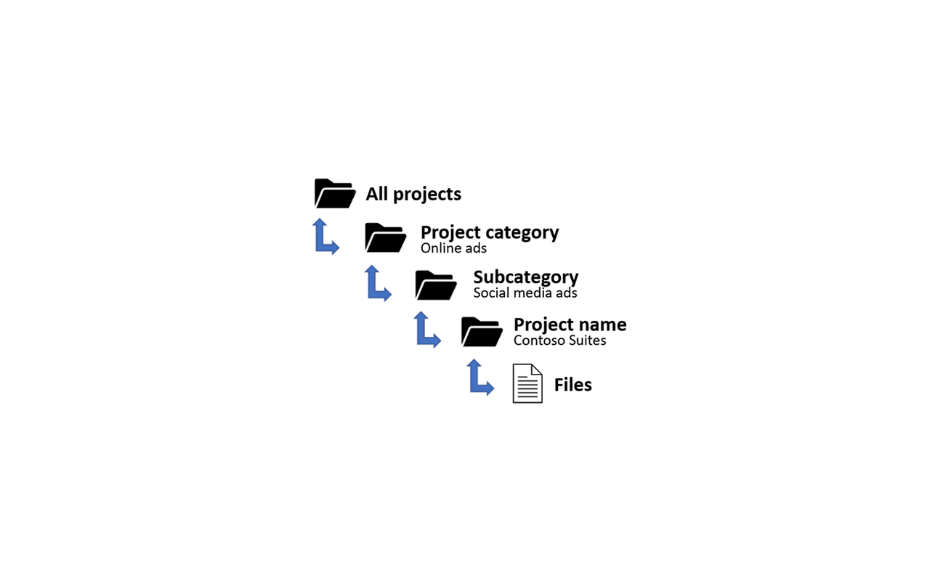
Every additional folder level adds navigation time and decision complexity. Limit nesting to three or four levels maximum. If you find yourself creating a fifth level, the structure is probably too granular. A project folder might contain subfolders for Deliverables, Research, and Communication, but further subdivision within those is usually unnecessary.
Use the YYYY-MM-DD date format at the beginning of folder names when chronological sorting is useful. This format sorts correctly in every file system and is internationally unambiguous. “2026-02-15_Client-Presentation” sorts chronologically and is descriptively named. These document organization methods for folder naming ensure consistency that pays off every time you browse your file system.
The Inbox Folder
Create a single “Inbox” or “To Sort” folder on your desktop and in your cloud storage. This is the temporary landing zone for files you save quickly during busy moments. The key is processing this folder regularly, at least weekly, moving files to their proper locations. Without regular processing, the inbox becomes another junk drawer. Cloud storage management across multiple platforms benefits from having one consistent inbox approach.
4. File Naming Conventions
A well-named file is findable through both browsing and searching. A poorly named file is lost regardless of where it is stored.
Naming Principles
Every file name should answer three questions: what is it, when was it created or relevant, and which version is it (if applicable)? A name like “report.docx” answers none of these. A name like “2026-02-15_Q1-Budget-Report_v02.docx” answers all three.
Use a consistent format across all your files. A practical template is: Date_Project-or-Context_Description_Version. For personal files: Date_Category_Description. The exact format matters less than using the same format every time. Effective document organization methods depend heavily on naming because file names are always searchable, while folder locations are not always remembered.
Dates in File Names
Always use YYYY-MM-DD format (2026-02-15, not 02-15-2026 or 15-02-2026). This format sorts chronologically in every operating system and avoids month-day ambiguity across international contexts. Place the date at the beginning of the name when chronological sorting is the primary need, or after the project name when project grouping matters more.
Version Control
Avoid the “final_FINAL_v2_REAL.docx” problem by using a consistent version numbering system. Simple sequential numbering (v01, v02, v03) works for most cases. For documents with formal stages, labels like DRAFT, REVIEW, and FINAL provide additional clarity. Delete or archive old versions once the current version is established to prevent confusion about which is authoritative.
Special Characters and Length
Avoid special characters in file names: no slashes, colons, asterisks, question marks, or quotation marks. These can cause problems across different operating systems. Use hyphens or underscores instead of spaces for maximum cross-platform compatibility. Keep file names under 50 characters when possible; very long names get truncated in some views and become difficult to read.
5. Organizing Cloud Storage Platforms
Each cloud platform has features that support organization if you know how to use them.
Google Drive
Google Drive’s strength is search. Its search function indexes the content inside documents, not just file names, making it powerful for retrieval. Use this by ensuring documents contain relevant keywords in their text. Organize shared files in Shared Drives (for teams) and keep My Drive for personal files. Use star functionality to mark frequently accessed files. Color-code folders by category for visual distinction. Create shortcuts to files rather than duplicating them across folders.
Dropbox
Dropbox’s Selective Sync lets you choose which folders sync to each device, saving local storage space. Use this to keep your full archive in the cloud while syncing only active project folders to your laptop. Organize files into top-level folders that mirror your local structure for consistency. Use Dropbox Paper for collaborative documents that stay connected to your file system.
OneDrive and Microsoft 365
OneDrive integrates deeply with Microsoft Office, making it the natural choice for teams using Word, Excel, and PowerPoint. Use Files On-Demand to save local storage by keeping files in the cloud until you need them. The version history built into Office files provides automatic version control. For teams, coordinate between OneDrive (personal files) and SharePoint (shared team files) to prevent confusion.
Cross-Platform Consistency
If you use multiple cloud services, designate one as your primary storage and use others for specific purposes only. Maintaining identical folder structures across multiple platforms creates unnecessary complexity. Instead, choose one service for active work, one for backup or archive if needed, and avoid scattering current files across services. File organization systems work best when they have a clear home base rather than distributed storage with no obvious hierarchy.
6. The Declutter Process: Step by Step
If your files are currently disorganized, a structured cleanup process gets you from chaos to order without overwhelm.
Phase 1: Assess
Before moving anything, understand what you have. Check storage usage on each device and cloud service. Identify your largest folders and files. Note where duplicates exist. List every location where files live: desktop, Documents folder, Downloads, cloud services, email attachments, external drives, and USB sticks. This inventory prevents the common mistake of organizing one location while forgetting others.
Phase 2: Delete
Start by removing what you clearly do not need. Empty your trash and recycle bin. Delete old downloads you have already used. Remove duplicate files (use a duplicate finder tool for large collections). Clear cached files and temporary data. Delete old application installers. This phase alone can recover significant storage space and reduce the volume of files you need to organize.
Be decisive. If you have not opened a file in two years and it is not a legal, financial, or sentimental document, you probably do not need it. Digital file cleanup is most effective when you are willing to let go of files that no longer serve any purpose.
Phase 3: Consolidate and Organize
Now move remaining files into your designed folder structure. Process one location at a time: desktop first, then Downloads, then each cloud service. Rename files that have unclear names. Group related files into appropriate folders. Applying consistent document organization methods during this phase ensures that the newly organized files are findable through both browsing and search.
Phase 4: Automate and Maintain
Set up automation to prevent re-accumulation. Configure your browser to ask where to save downloads rather than dumping everything into one folder. Create rules that automatically sort certain file types. Schedule weekly and monthly maintenance sessions. Digital declutter strategies succeed long-term only when daily habits change alongside the one-time cleanup.
7. Automation and Tools
The right tools reduce the ongoing effort required to stay organized.
Automatic File Sorting
On Mac, Hazel monitors designated folders and automatically moves, renames, or files documents based on rules you define. On Windows, File Juggler provides similar functionality. Both can watch your Downloads folder and automatically sort files by type, moving PDFs to a Documents folder, images to a Photos folder, and so on. This automation handles the most common source of clutter without requiring any daily effort.
Both Mac and Windows also have built-in automation options. Automator on Mac and Power Automate on Windows can create workflows that process files on a schedule. These built-in tools are among the most accessible digital declutter strategies available because they require no additional software.
Duplicate Detection
Duplicate files are a major contributor to storage waste. Tools like dupeGuru (free, cross-platform), Gemini (Mac), and built-in cloud service features can scan your storage and identify identical or similar files. Run a duplicate scan before organizing, then periodically afterward to catch new duplicates. Always review what a duplicate finder flags before deleting; sometimes files that look identical serve different purposes.
Bulk Renaming
When you have hundreds of poorly named files, manual renaming is impractical. Bulk Rename Utility (Windows) and NameChanger (Mac) let you rename large groups of files according to patterns, adding dates, replacing text, or sequencing numbers. These tools are particularly valuable during the initial digital file cleanup when years of accumulated files need consistent naming applied retroactively.
Search Optimization
Rather than relying entirely on folder navigation, invest in learning your operating system’s search capabilities. macOS Spotlight and Windows Search both index file names, content, and metadata. Learning search operators (file type filters, date ranges, location restrictions) makes retrieval fast even in imperfectly organized systems. File organization systems work best when combined with strong search skills as a backup.
8. Maintaining Organization Long-Term
Organizing your files is a project. Keeping them organized is a habit.
Daily Habits
The most important daily habit is filing immediately. When you save or download a file, take the extra five seconds to name it properly and save it to the correct location. Resist the temptation to save to the desktop “just for now.” At the end of each workday, quickly scan your desktop and Downloads folder. Move or delete anything that landed there during the day. These small actions prevent the gradual re-accumulation that turns a clean system into a cluttered one.
Weekly Maintenance
Once per week, spend 10 to 15 minutes on digital organization. Process your Inbox or To Sort folder, moving everything to its proper location. Delete files you no longer need. Check that recent files are named consistently. This weekly ritual is the equivalent of cleaning your physical desk; it prevents small messes from becoming large ones. Document organization methods are sustained through these regular, brief maintenance sessions rather than occasional marathon cleanup efforts.
Monthly and Quarterly Reviews
Monthly, check your storage usage and archive completed projects. Review your folder structure: is anything outgrowing its location? Quarterly, conduct a deeper review: delete old files, consolidate scattered items, and refine your system. Regular digital file cleanup at these intervals prevents the slow creep of disorganization that undermines even well-designed systems.
Recovering from Lapses
You will have busy weeks where files accumulate without proper filing. When this happens, schedule a 30-minute catchup session to restore order. The goal is not perfection but resilience: a system that bounces back from temporary neglect rather than collapsing under it. Forgive the lapse, schedule the cleanup, and resume your habits.
9. Organizing Shared and Collaborative Storage
When multiple people share storage, organization becomes both more important and more challenging.
Team File Organization
For teams, the folder structure should be documented and shared with everyone who uses it. Naming conventions must be agreed upon rather than left to individual preference. Designate a structure owner who maintains consistency and onboards new team members. Use your platform’s permission features to prevent accidental changes to the structure itself while allowing content changes within it.
Cloud storage management for teams requires explicit agreements about where things go, how they are named, and who is responsible for maintenance. Without these agreements, shared drives devolve into the same chaos that individual drives experience, but with more people contributing to the mess.
Family Storage
Families sharing cloud storage benefit from a simple structure with clear boundaries: a Shared folder for family documents, photos, and records, and individual folders for each family member’s personal files. Establish simple rules about photo organization (by year, then by event) and document storage. Teach children basic filing habits early; the skills transfer to academic and eventually professional contexts. These foundational document organization methods become second nature when practiced from a young age.
Client and External Collaboration
When sharing files with clients or external partners, create a clean, professional folder structure for the shared space. Remove internal drafts and working files before granting access. Use clear, descriptive names that make sense to someone unfamiliar with your internal terminology. After a project concludes, revoke sharing access and archive the project files. Digital file cleanup for shared spaces is especially important because it directly affects your professional image.
Start With One Area This Week
You do not need to organize everything at once. Choose one area: your Downloads folder, your desktop, one cloud storage account, or your photo library. Spend 30 minutes applying the principles in this guide. Delete what you do not need. Create a simple folder structure. Rename files clearly. Set up one daily habit, like filing downloads immediately rather than letting them accumulate.
That single session will demonstrate the relief that comes from digital order. Knowing exactly where things are, finding files in seconds, and opening your computer to a clean workspace all reduce stress. Whether it is local drives or cloud storage management across multiple platforms, the same principles apply: name clearly, file consistently, and maintain regularly.
From there, expand gradually. Organize another area next week. Establish your weekly maintenance ritual. Set up one automation rule. Each small improvement compounds into a system that sustains itself with minimal effort. The digital declutter strategies in this guide are designed to be adopted gradually, one habit at a time. File organization systems are not about achieving perfection. They are about building consistent habits that keep your digital life functional, findable, and free of the anxiety that comes from knowing your files are a mess you have been avoiding.
Start today. Your future self will thank you.